Read and work your lead queue
The Lead Queue is the main screen. Each card is one conversation from the internet where someone is talking about what you watch. Cards are ranked by score — higher first.
Read a card
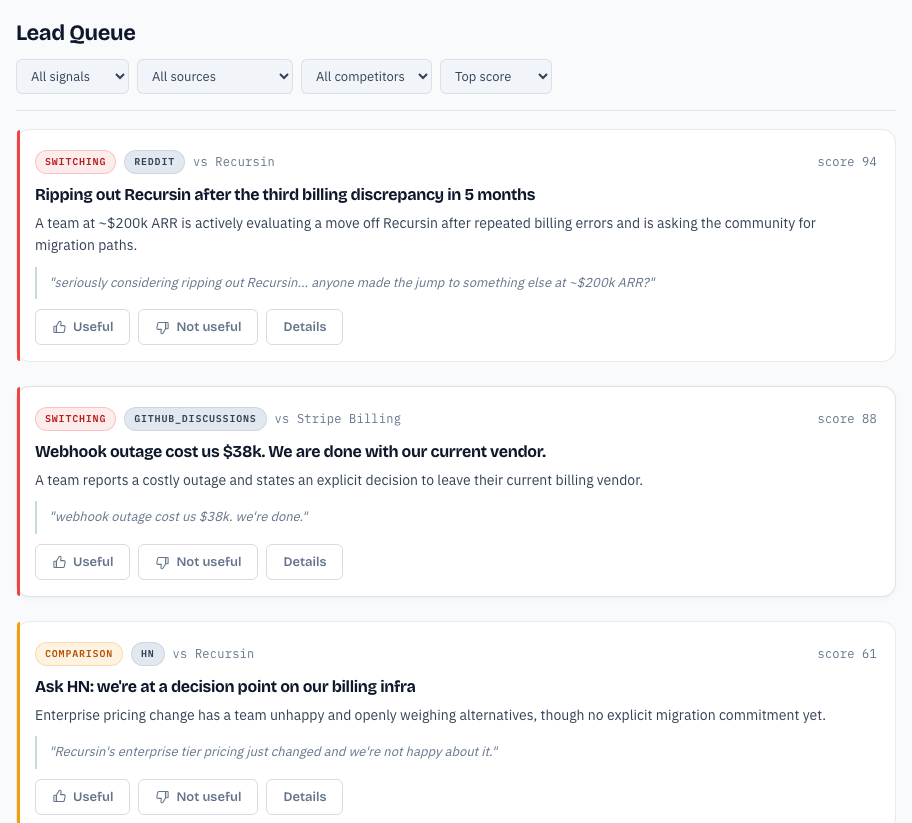
Each card shows, top to bottom:
- Signal badge — what the post is. See the signals list below.
- Source badge — which community the post came from: Reddit, Hacker News, Stack Exchange, GitHub, Discourse, and more.
- vs
— the competitor the post names, if any. - score N — the ranking, from 0 to 100. Higher means a stronger buying signal.
- Title — a link to the original post. Click it to open the conversation in a new tab.
- Summary — one or two sentences that explain the post.
- Evidence — the exact quote the summary came from. Judge it yourself before you reply.
- Useful / Not useful / Details — see below.
Signals
- Switching — someone is leaving a competitor. The strongest signal.
- Comparison — someone is weighing options. No commitment yet.
- Complaint — frustration that may open a switching window.
- Praise — positive sentiment. Low buying intent.
Filter and sort
The filter bar sits above the cards. Left to right, each is a dropdown:
- All signals — show only one signal type, for example only Switching.
- All sources — show only posts from one community.
- All competitors — show only posts that mention one competitor.
- Top score — the default sort; switch to By type or Most recent.
The All signals and Top score dropdowns refetch the list from the server. The other two narrow the cards already on screen.
Open a lead's details
Click Details on a card to see everything about one lead:
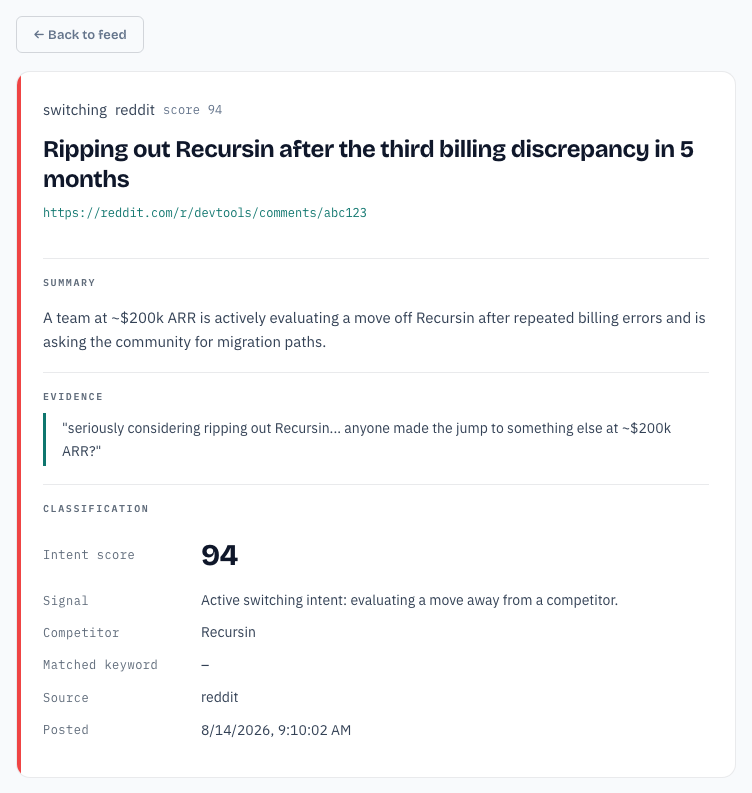
- Intent score — the same score as on the card.
- Signal — a plain-language explanation of the verdict.
- Competitor — who the post mentions, or a dash if none.
- Source and Posted — where it came from and when.
Click the post's link to read the conversation. Click ← Back to feed when you are done.
Mark leads useful or not
Use the Useful and Not useful buttons to teach the system what you want. A card you mark fades slightly but stays in the list. You can keep working the queue without losing your place.
Load more
At the bottom of the list, click Load more to bring up the next page of leads. When the button disappears, you have seen everything for now.
New leads appear as LeadSurface scans. Scans run hourly, and saving your Settings triggers a scan right away. Empty queue? See Troubleshooting.